Search This Blog

What Is the Best Operating System

Choosing the best operating system depends on personal needs and preferences, as well as the intended use of the device.

There are several operating systems available in the market, including Windows, macOS, Linux, Android, and iOS. Each of these operating systems has its unique features, advantages, and disadvantages.

Windows is the most widely used operating system in the world, known for its versatility and compatibility with a wide range of devices and software applications. It is a popular choice for gamers and businesses, but it has also been criticized for its susceptibility to viruses and malware.

macOS is the operating system used exclusively on Apple's Macintosh computers. It is known for its intuitive user interface, reliability, and security. It is a popular choice for creative professionals, but it is also more expensive than other operating systems and has a smaller selection of software applications.

Linux is a free and open-source operating system that is popular among developers, programmers, and tech enthusiasts. It is known for its flexibility, security, and customization options. However, it may not be as user-friendly as other operating systems, and it may require more technical knowledge to use effectively.

Android is a mobile operating system developed by Google and is widely used on smartphones and tablets. It is known for its affordability, customization options, and compatibility with a wide range of apps. However, Android devices may have security vulnerabilities, and software updates may not be available for all devices.

iOS is the mobile operating system used exclusively on Apple's iPhones and iPads. It is known for its intuitive user interface, reliability, and security. It is a popular choice for creative professionals and business users, but it is also more expensive than other operating systems and has a smaller selection of software applications.

In summary, the best operating system depends on personal needs, preferences, and intended use of the device. Each operating system has its advantages and disadvantages, and it is up to the user to decide which one is best for them.


FREE 1 TB CLOUD

CBackup is most powerfull system which allows you to automatically back up files to Google Drive, Dropbox, OneDrive, etc. 


And you could also increase Google Drive storage space for free if you meet the Google Drive storage full error.

1. Please create an account with CBackup, and sign in to the CBackup desktop app.

2. Click the My Storage tab, select Google Drive, and press Authorize Now. Grant authority to CBackup and allow CBackup to access your Google Drive files. 


Click My Storage >select Google DriveOneDrive, or Dropbox, then click Authorize Now. Sign in to the corresponding account to grant CBackup connection with your account data. If you want to get as much storage space as possible, you can add all your Google Drive accounts, Dropbox accounts, and OneDrive accounts to CBackup.


Click the + Add Combined Cloud option under the My Storage tab.


In the pop-up window, customize the name of the combined cloud, tick all the cloud accounts you have added, and tap Next > Combine.


In this way, you could get 1 TB Storage for lifetime, Google Drive 1TB free storage space, and even unlimited cloud storage, just enjoy the 1TB cloud storage or more for free.


Enjoy your 1 TB Lifetime totally free


Official Microsoft Way to Bypass Windows 11 TPM

Realizing that a some clients will need to introduce Windows 11 on frameworks that don't meet all of its equipment necessities, Microsoft has given a vault hack that relaxes them up to some degree. Utilizing this hack, you can introduce on a framework that has essentially TPM 1.2 and has an unsupported CPU. All things considered, we suggest the contents above in light of the fact that they don't expect you to have TPM of any sort.


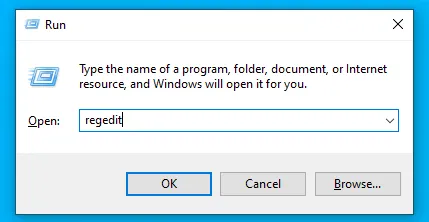
1. Open Regedit


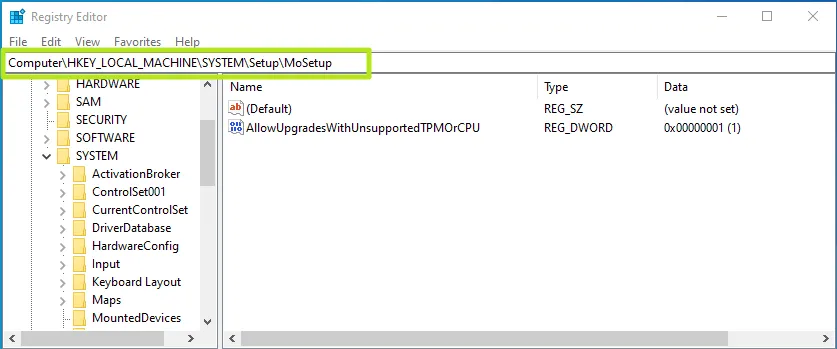
2. Navigate to HKEY_LOCAL_MACHINE\SYSTEM\Setup\MoSetup.


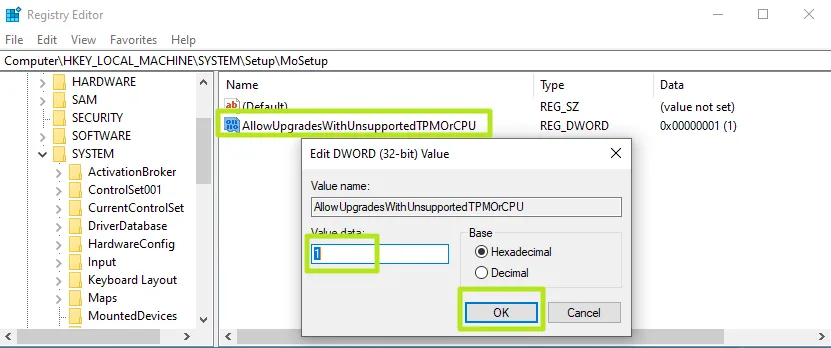
3. Create a DWORD (32-bit) Value called AllowUpgradesWithUnsupportedTPMOrCPU if it doesn't already exist.

4. Set AllowUpgradesWithUnsupportedTPMOrCPU to 1.


5. Close regedit and restart your PC. You should now be able to upgrade to Windows 11 from within Windows 10 by using installation media .


Complete guide to Bypass Windows 11 requirements


 Microsoft has some strict hardware requirements that your PC must meet to install Windows 11, including TPM 2.0 support. This is to avoid older computers and virtual machines to upgrade from Windows 10, by flashing a message that "this PC doesn't currently meet Windows 11 system requirements." 

But, there is a simple way you can create a Windows 11 USB install disk to bypass Windows 11's TPM requirement and 8GB of RAM Requirement. Using a free tool called Rufus and at least a 16GB Flash drive, you can either perform an in-place upgrade of Windows 10 to 11 or a Windows 11 clean install while getting around these minimums.

Note that Microsoft also has created an official registry hack to bypass TPM 2.0 and CPU requirements. However, this method still requires at least TPM 1.2 so, if you have no TPM at all, it's worthless. We'll talk about this at the bottom, in case you want to try it.


How to Bypass Windows 11's TPM Requirement Using Rufus

1. Download the latest version of Rufus and install it on your machine. 

2. Insert a blank 16GB or larger USB stick then open Rufus.

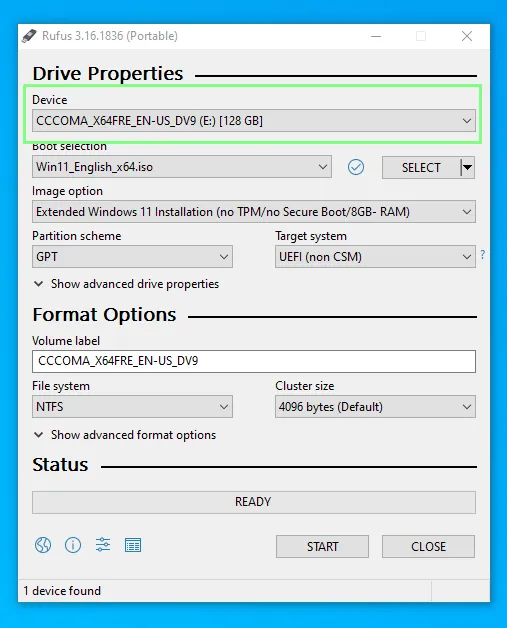
3. Select the USB device that you want to install Windows 11 to.


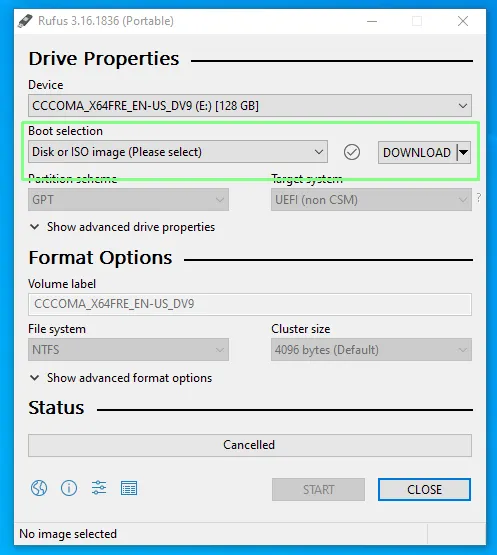
4. Ensure that Boot Selection shows “Disk or ISO image” and click DOWNLOAD.


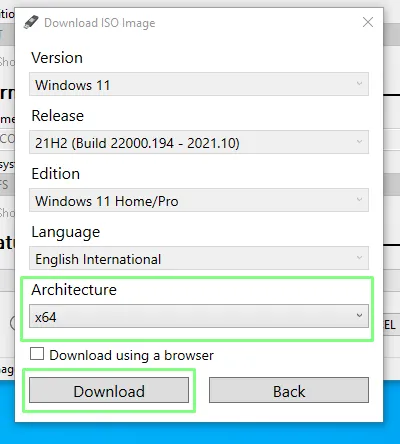
5. Select Windows 11 and click Continue.

6. Select the latest release and click Continue.

7. Select the edition and click Continue.

8. Select your preferred language and click Continue.

9. Select the architecture (most likely x64) and click Download. A new window will open asking where to save the ISO image. Save it to your Downloads folder. You can also download the image using a browser if you wish.


The download will take several minutes to complete.

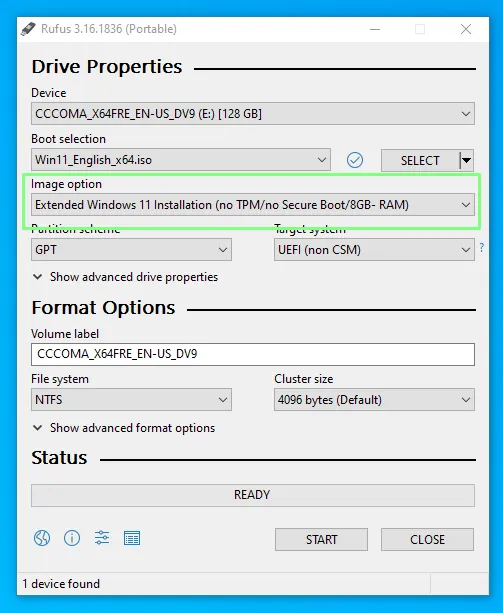
10. Click on the Image option drop down and select Extended Windows 11 Installation to disable TPM, Secure Boot and the 8GB of RAM requirement.


11. Double check that the correct drive has been selected and click on Start to begin the installation.

The write process can take some time, depending on the USB drive being used, but when done the drive can be removed and used to install Windows 11 on an older computer or even in a virtual machine.


12. Install or upgrade to Windows 11. Run setup on the USB drive, if you ware doing an in-place install from an existing Windows 10 installation.  Boot off of the drive if you are doing a clean install. Note that you may need to disable secure boot in your BIOS if it gives you a problem.

Complete Guide to Install Windows 11 Totally Free


Download windows 11 

There are three options to download windows 11.

1.  Windows 11 Installation Assistant

This is the best option for installing Windows 11 on the device you’re currently using. 


2.  Create Windows 11 Installation Media
If you want to perform a reinstall or clean install of Windows 11 on a new or used PC, use this option to download the media creation tool to make a bootable USB or DVD.

3. Download Windows 11 Disk Image (ISO)
This option is for users that want to create a bootable installation media (USB flash drive, DVD) or create a virtual machine (.ISO file) to install Windows 11. This download is a multi-edition ISO which uses your product key to unlock the correct edition.

You can easily do this using official Microsoft page.


You may have to go through simple steps to finish installation.

If your machines not supported Minimum system requirements you may flash " This PC can’t run Windows 11error message, don’t worry everything has answer. See next post for complete bypass of system requirements.


Windows 11 Minimum system Requirements

  • Processor: 1GHz or faster with two or more cores on a compatible 64-bit processor or system on a chip (SoC)
  • RAM: at least 4GB
  • Storage: at least 64GB of available storage
  • Security: TPM version 2.0, UEFI firmware, Secure Boot capable
  • Graphics card: Compatible with DirectX 12 or later, with a WDDM 2.0 driver
  • Display: High definition (720p) display, 9" or greater monitor, 8-bits per color channel

Why Flush Has 2 Buttons 😇


Modern toilet system has two flush buttons, Smaller and Bigger size. This is basically to achieve water sustainability. Let's see how it achieve.

This type called as Duel Flush system. Two type button attached to two level of water dis-engage valves. This vales operate different height of ware levels. 

Simply if you press Small button it Disengage small water content (3 to 4.5 Liter water)

If you press Big Button it Disengage Large water quantity (6 to 9 Liter Water)


So please use this buttons as per your requirements and help to save world with simple button click. 

Top Professional Video Editing Software Free Download

 1. EDIUS

Price: $499, One-Time Purchase

Pros: Renderless video editing, 4K HDR workflow, flexible user interface, real-time conversion rates, support for a wide variety of video formats, fast AVCHD editing, motion tracking, 3-way color correction.

Cons: Relatively broadcast-oriented.


2. Autodesk Smoke

Price: $190, Monthly Subscription, 1505$, Yearly Subscription

Pros: Timeline-based creative workflow, node-based compositing, ability to flawlessly make use of 3D animations and modeling, a high degree of stability (no crashes!).

Cons: Can only be used on a single monitor. Furthermore, Autodesk Smoke is exclusively for Mac users.


3. Avid Media Composer

Price: $199.99 for a Year’s Subscription, or $24.99 Monthly

Pros: Free download, Advanced color-correction, built-in metadata and effect tools, HDR support, multicam editing, FrameFlex, keyboard mapping, background rendering, real-time editing, a very high degree of stability, and serves as a great starting point for budding video editors.

Cons: Steep learning curve and outdated interface. However, learning how to use Avid Media Composer will enable you to jump right into other video editing software with ease.


4. Adobe Premiere Pro CC

Price: $31.49 Monthly Subscription, $239.88 Yearly Subscription

Pros: Highly customizable and streamlined interface, easy to use for people with past experience in Adobe products but no previous video editing experience, a large variety of tools such color matching and multi-camera rendering, and a fast rendering speed.

Cons: New updates might have a couple of bugs, so you should be a bit patient before you update if you want to keep it on the safe side. Mac users also report that it runs a bit slow on their systems.


5. Final Cut Pro

Price: $299, One-Time Purchase

Pros: Support for 360-degree VR, HDR, multi-camera editing, fast rendering speed, a large variety of interesting tools, expansive library of plugins, and easy-to-use colour correction, grading, and adjustment tools. Final Cut Pro has also been designed and optimized for Mac operating systems.

Cons: Only for Mac users. Large project files can also be slow.